




Create and Use Custom Agents
Create and Use Agents
Agents are AI-powered virtual members that can take actions in Expensify based on instructions you provide. You write natural-language instructions that tell an agent what to do, and you can chat with an agent or Copilot into its account at any time.
Every agent has its own Expensify account. You can Copilot into the agent’s account to review its activity, update its instructions, and see the actions it has taken. Because the agent operates from its own account, it doesn’t have access to your personal account or personal context, and it can’t act on your behalf.
Coming soon: You’ll be able to add an agent as a Copilot on your own account, giving it delegated access so it can use your personal context and manage expenses and reports on your behalf.
Expensify also supports Agent rules, which are workspace-level AI automations enforced by RuleBot. Learn how to Create Agent Rules.
Who can use Agents
Agents are currently available through an open beta program. If you’d like to try Agents and provide feedback, contact Concierge to request access.
If the beta is enabled on your account, you can create an agent. When the feature is available to you, an Agents option appears in your Account settings
If you don’t see Agents in your Account settings, the Beta isn’t enabled on your account yet.
How to create an Agent
- In the navigation tabs (on the left on web, on the bottom on mobile), click Account.
- Click Agents.
- Click New agent.
- Review the auto-generated profile image and display name. If needed, you can edit these later.
- Click Write custom instructions and describe what you want the agent to do.
- Click Create agent.
After saving, the new agent appears in your Agents list with Edit, Chat, and Copilot buttons.
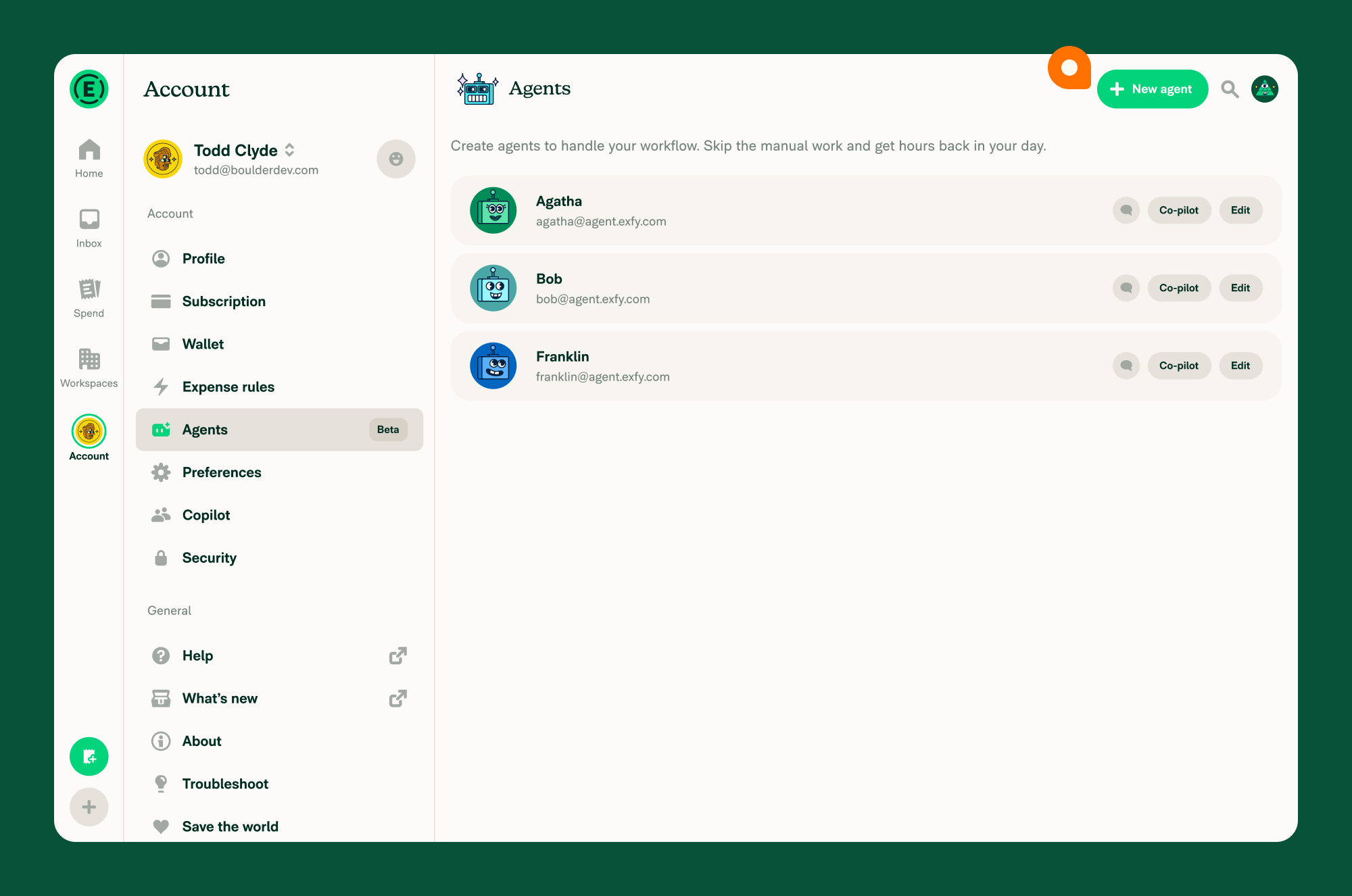
What happens after you create an agent
After you create an agent:
- A new Expensify account is created for the agent.
- You become the agent’s owner.
- You’re automatically added as a full-access Copilot on the agent’s account.
- The agent appears in your Agents list, where you can chat with it, edit its instructions, or Copilot into its account.
- The agent can be added to workspaces as a member and selected anywhere a workspace member can be chosen, such as approval workflows.
The agent follows the instructions you provide, but it operates independently from its own Expensify account. It can take actions as the agent account, but it can’t access your personal account or act on your behalf.
How to write instructions for an agent
Agent instructions are written in natural language. Describe the role, responsibilities, and decisions you want the agent to make. Clear, specific instructions generally produce more predictable results than broad or ambiguous instructions.
If you’re unsure how to write instructions, you can chat with the agent and describe the outcome you want. The agent can ask clarifying questions, help draft instructions, and explain how it would behave in a specific situation based on the instructions.
Agent instructions use the same natural-language prompting concepts as Agent rules. For guidance, examples, and prompt-writing best practices, learn how to write agent rules.
How to chat with an agent
To open a direct conversation with an agent:
- In the navigation tabs (on the left on web, on the bottom on mobile), click Account.
- Click Agents.
- Find the agent you want to message, then click the chat icon on the agent’s row.
How to Copilot into an agent’s account
Each agent is its own Expensify account with a profile, inbox, chats, and activity history. When you create an agent, you become its owner and are automatically added as a full-access Copilot.
Use Copilot to see what the agent has done, review its activity, and inspect any actions it has taken on reports.
- In the navigation tabs (on the left on web, on the bottom on mobile), click Account.
- Click Agents.
- Find the agent in the list and click Copilot.
How to edit an agent’s instructions
You can edit an agent’s instructions at any time.
- In the navigation tabs (on the left on web, on the bottom on mobile), click Account.
- Click Agents.
- Find the agent you want to change, then click Edit.
- Click the Write custom instructions section.
- Enter the new instructions you want the agent to follow.
- Click Save.
How to delete an agent
Deleting an agent closes its Expensify account.
- In the navigation tabs (on the left on web, on the bottom on mobile), click Account.
- Click Agents.
- Find the agent you want to remove, then click Edit.
- Click Delete agent.
- Confirm the deletion.
Deleting an agent can’t be undone.
How to use an agent as a workspace approver
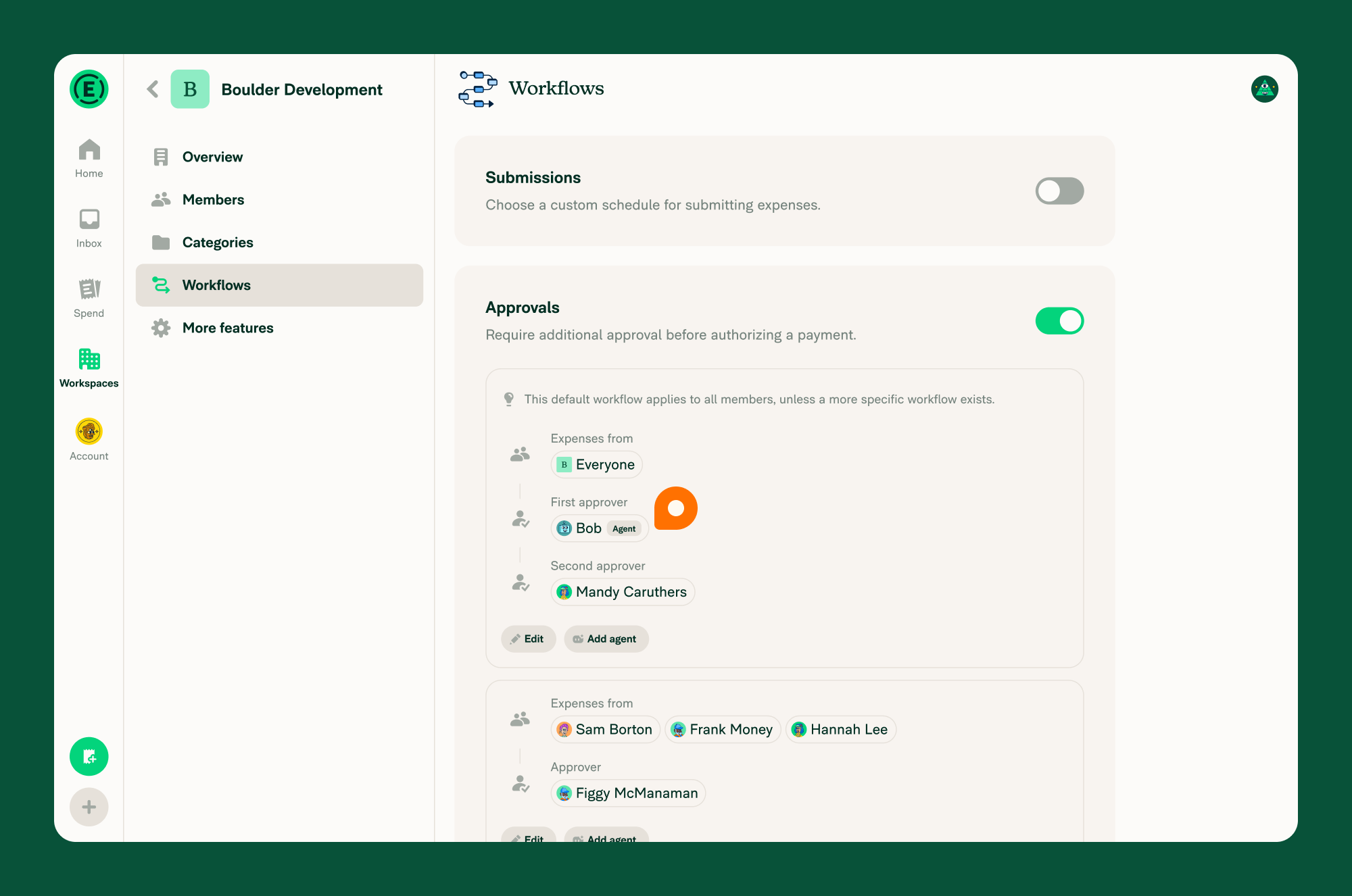
Before you can select an agent as an approver, the agent must be added to the workspace as a member. Once added, the agent can be selected anywhere an approver can be selected.
Learn how to add a new Workspace member.
- In the navigation tabs (on the left on web, and at the bottom on mobile), click Workspaces > [Workspace name].
- Click Workflows.
- Open the workflow you want to edit, or click Add approval workflow to create a new one.
- Click Approver.
- Choose the agent from the list of workspace members.
- Click Save.
The agent will receive each report submitted through the workflow and determine whether to approve or reject it based on its instructions.
For details on configuring approval workflows generally, see Learn how to add approvals to a workspace.
FAQ
Why can’t I see Agents in my Account settings?
Agents are in Beta and may not be enabled on your account yet. When the feature is available, an Agents option appears in your Account settings with a Beta badge.
Who can edit or delete an agent?
Only the agent’s owner can edit its instructions or delete it. The owner is the account that created the agent.
Does an agent have its own Expensify account?
Yes. Each agent is created as a separate Expensify account with its own profile, inbox, chats, and activity history. The account that creates the agent becomes its owner and is automatically added as a full-access Copilot.
Are agents billed?
An agent is a member of any workspace it’s added to and is billed as a workspace member like any other member. Usage-based billing for agent activity is not yet in effect at this release.
Can I remove myself as a Copilot from an agent I created?
No. The owner is permanently added as a full-access Copilot on the agent’s account so you always retain access to review and update the agent.
Can an agent be added to multiple workspaces?
Yes. An agent is a member like any other and can be added to as many workspaces as you’d like, and selected as an approver in each of their workflows.
Can I use an agent in multi-step approval workflows?
Yes. On Control plans, agents can be used anywhere an approver can be selected, including multi-step approval workflows.
On Collect plans, workspaces support a single approver. An agent can be used as that approver.
Can an agent make mistakes?
Yes. Agents follow natural-language instructions and are powered by AI, so they may occasionally behave unexpectedly. Write clear, specific instructions and review what an agent does.
Can I add an agent as a Copilot on my own account?
Not yet. Today, every agent has its own Expensify account, and you’re automatically added as a Copilot on the agent’s account when you create it.
Coming soon: You’ll be able to add an agent as a Copilot on your own account, giving it delegated access to your account so it can use your personal context and manage your expenses and reports on your behalf.


